Introduction to ListView in Titanium 3.0 for Android and iOS apps
Posted By : Deepankar katiyar | 20-Nov-2013
Today, I will blog on introduce ListView . A listview is uesd to display information in a list. A List view is used to present information. List View is designed, to display data in scrollable list. Both List View and Table View present data to user as a vertically scrolling list of row. List View is a data-oriented approach. A List View object is container for List Section objects that are container for List item object. The next three Section of this topic cover the important object needed to create scrollable list of data.
- ListView,
- ListSection,
-
ListItem,
List View
A list view object is used to manipulate List Sections, which contains List Items this items you want to display to user.To create a list view ,use the "Titanium.UI.createListView()" method, then add list Sections using the sections property.
List Section
A list Section is a container within a list view used to organize list items. Use the " Titanium.UI.createListSection() " method to create a listSection.
ListItem
A list Item is an individual row in a ListView,created from a ListDataItem and itemTemplate.The list data item where you want to display data to a user
Here You will learn, How to create List View in titanium.
- Create a new Project in titanium.,
- Now, replace your “apps.js “ code,
- First create a window
var win = Ti.UI.createWindow({
	backgroundColor : 'white',
	top : isIOS7() ? 20 : 0,
                });
- Then You will create a list View . through add method You can add listview in a Window.
var listView = Ti.UI.createListView({
	top : '55dp',
	templates : {
		'plain' : template
},

	defaultItemTemplate : 'plain'
});
Here, templates are use to map a style name to an item template object. The style name is used to bind the item data to an item template with the data item's template property
- After that, You are create a List Section. Which is organize list items. And items sets the list data items to display.
var section = Ti.UI.createList Section({
	items : data
});

listView.sections = [section];
- Here is "apps.js" file where you are create a ListView .
Ti.UI.setBackgroundColor('#F0FFFF');
function isIOS7() {

	if (Titanium.Platform.name == 'iPhone OS') {
		var version = Titanium.Platform.version.split(".");
		var major = parseInt(version[0], 10);

		if (major >= 7) {
			return true;
		}
	}
	return false;
};

var data = [];

var win = Ti.UI.createWindow({
	backgroundColor : 'white',
	top : isIOS7() ? 20 : 0,
});

var view = Ti.UI.createView({
	height : "50dp",
	width : "100%",
	top : '0dp',
	backgroundColor : '#050505',
});
var text = Ti.UI.createLabel({
	text : "List View Demo",
	left : 20,
	color : '#fff'

});
view.add(text);
win.add(view);
var template = {
	childTemplates : [{
		type : 'Ti.UI.Button',
		bindId : 'image',
		properties : {
			left : '2dp',
			backgroundImage : 'India-Flag-icon.png',
		}
	}, {
		type : 'Ti.UI.Label',
		bindId : 'rowtitle',
		properties : {
			left : '50dp'
		}
	}, {
		type : 'Ti.UI.Button',
		bindId : 'button',
		properties : {

			right : '10dp',
			backgroundImage : "uncheckbox.png",

		},
		events : {
			click : checkBox
		}
	}]
};

for (var i = 0; i < 25; i++) {
	data.push({

		rowtitle : {
			text : 'ListView Row ' + (i + 1)
		},

	});
}

var listView = Ti.UI.createListView({
	top : '55dp',
	templates : {
		'plain' : template
	},

	defaultItemTemplate : 'plain',
});

var section = Ti.UI.createListSection({
	items : data
});

listView.sections = [section];


function checkBox(e) {
	Ti.API.info(e.type);

	var btn = e.source;
	if (btn.backgroundImage == "checkbox.jpeg") {
		btn.backgroundImage = "uncheckbox.png";
	} else {
		btn.backgroundImage = "checkbox.jpeg";
	}

}

win.add(listView);
win.open();
This screen shows the list view in titanium.
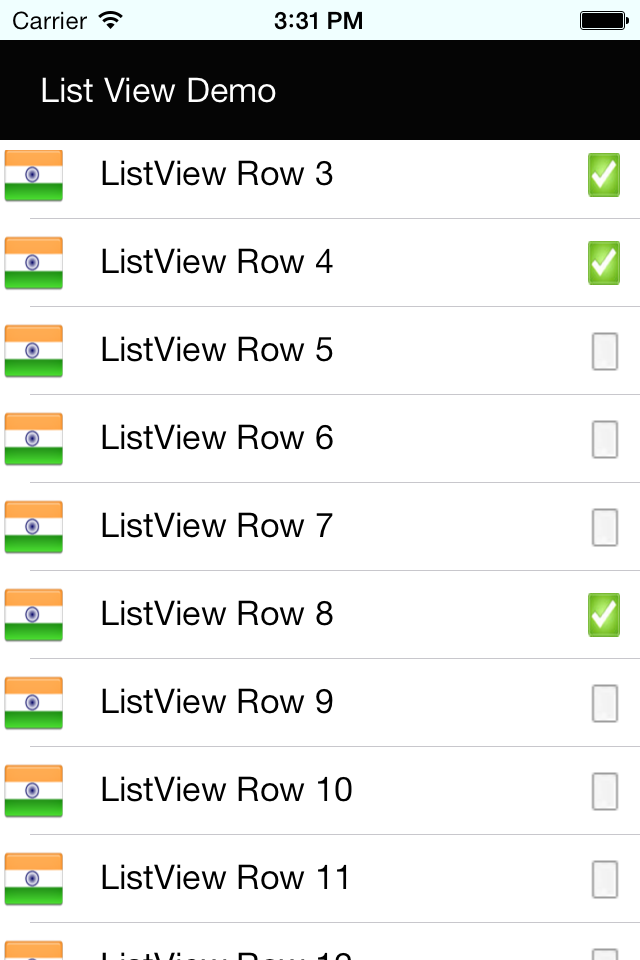
Here you can create ListView in titanium 3.0 or above version. Hope it helps :- Deepankar Katiyar


Cookies are important to the proper functioning of a site. To improve your experience, we use cookies to remember log-in details and provide secure log-in, collect statistics to optimize site functionality, and deliver content tailored to your interests. Click Agree and Proceed to accept cookies and go directly to the site or click on View Cookie Settings to see detailed descriptions of the types of cookies and choose whether to accept certain cookies while on the site.
















About Author
Deepankar katiyar
Deepanker is an iPhone and Android application developer with experience in Titanium and Phonegap frameworks.