SSL Certificate on Pfsense
Posted By : Shailendra Singh Rathod | 27-Sep-2017
How to apply SSL by Let’s Encrypt on pfSense?
SSL (Secure Sockets Layer) certificates, sometimes called digital certificates are used to create an encrypted connection between the client and the server. Transmission of a data or any other sensitive information has to be encrypted to prevent eavesdropping.
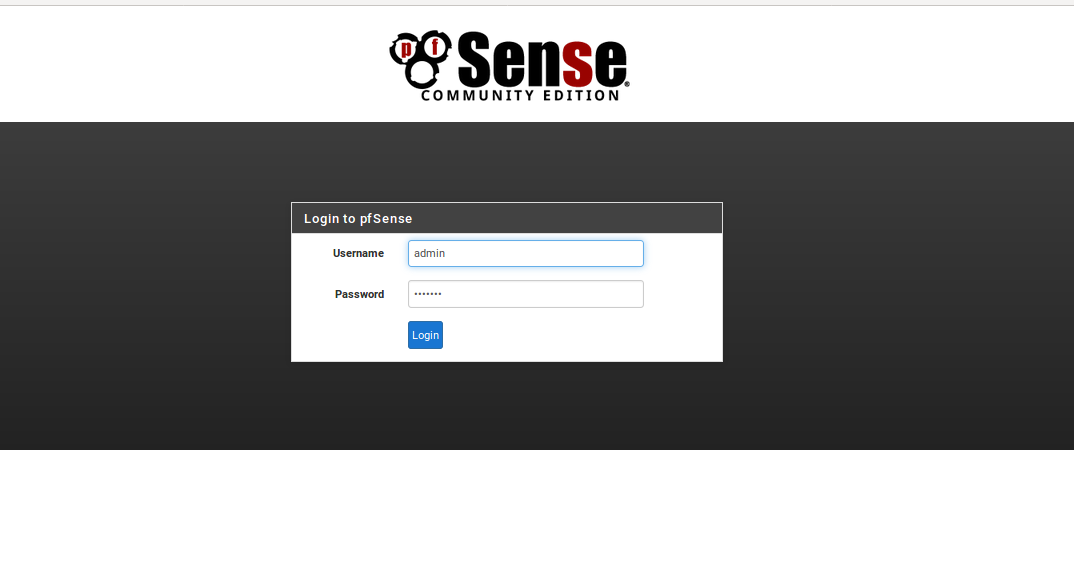
First login in Pfsense.
Enter Username and Password.
Then go to System / Package Manager / Available Packages
Search an acme package and click the install button and please wait while the installation of pfsense-pkg-acme completes.
When you have installed acme package on pfsense then click on Services /Acme Certificates.

A tab will open. Click on Account Keys.
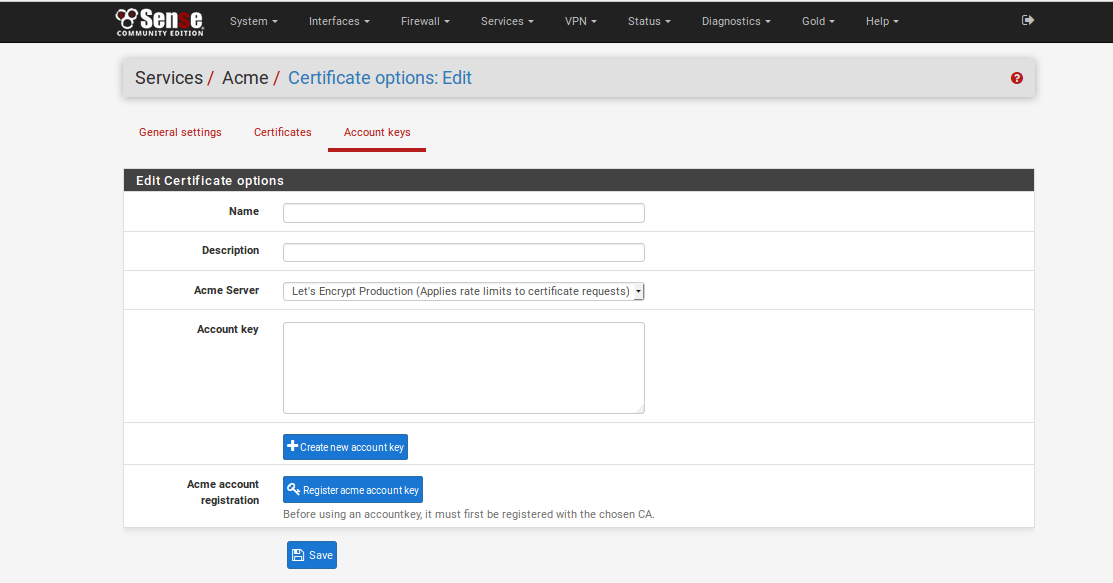
Now first you create your account keys. Enter a domain name which is registered and mapped with pfsense. So you can have a valid domain name and type Description. Now select Acme Server in the drop-down list.
Click on “Create new account key” for generating a key.
Now click the Register button and Save.
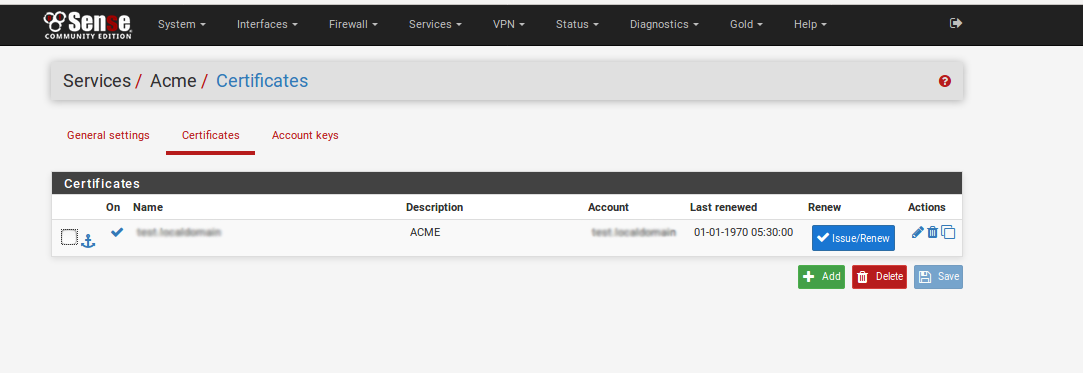
Now click on certificate and Under Certificates click the Add button
An Edit Certificate option tab will open
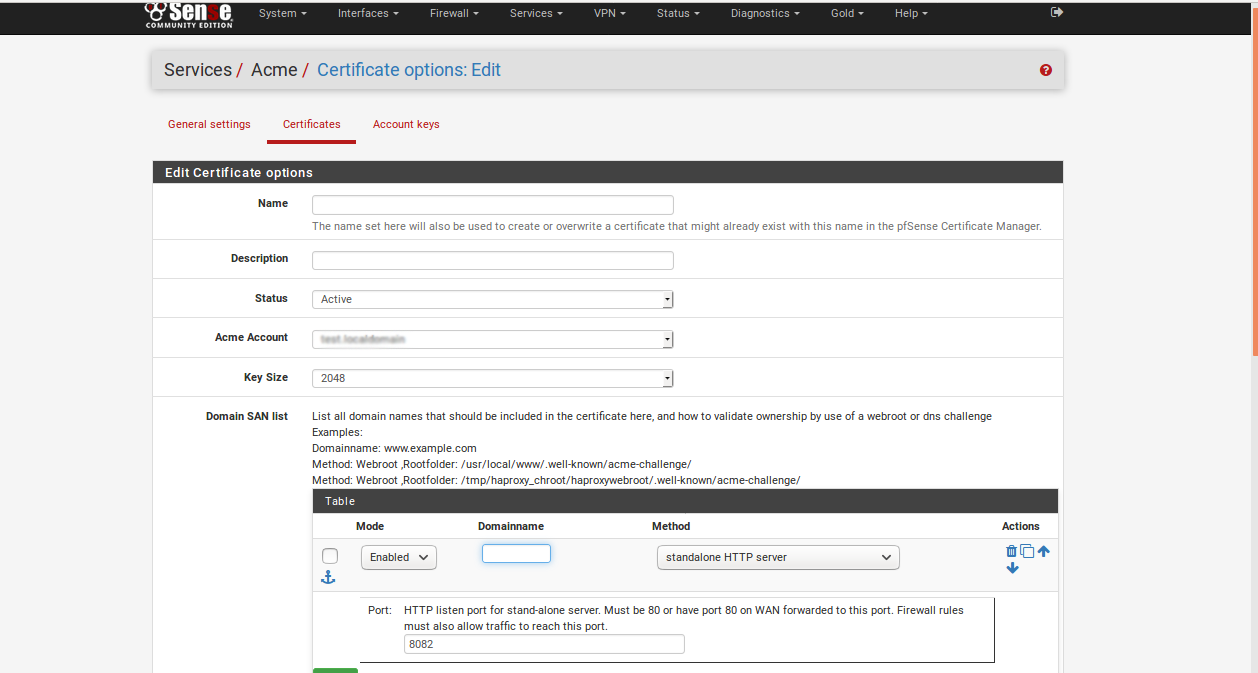
This step is to create your certificate.
Type the details such as the Name and Description. You can keep Key Size default such as 2048.
In the Domain SAN list, type domain name and select “standalone HTTP server” and set the listen port to 8082.
The next step is to make a port forward rule.
Now go to Firewall / NAT / Port Forward and click on Add.
An Edit Redirect Entry tab will open.
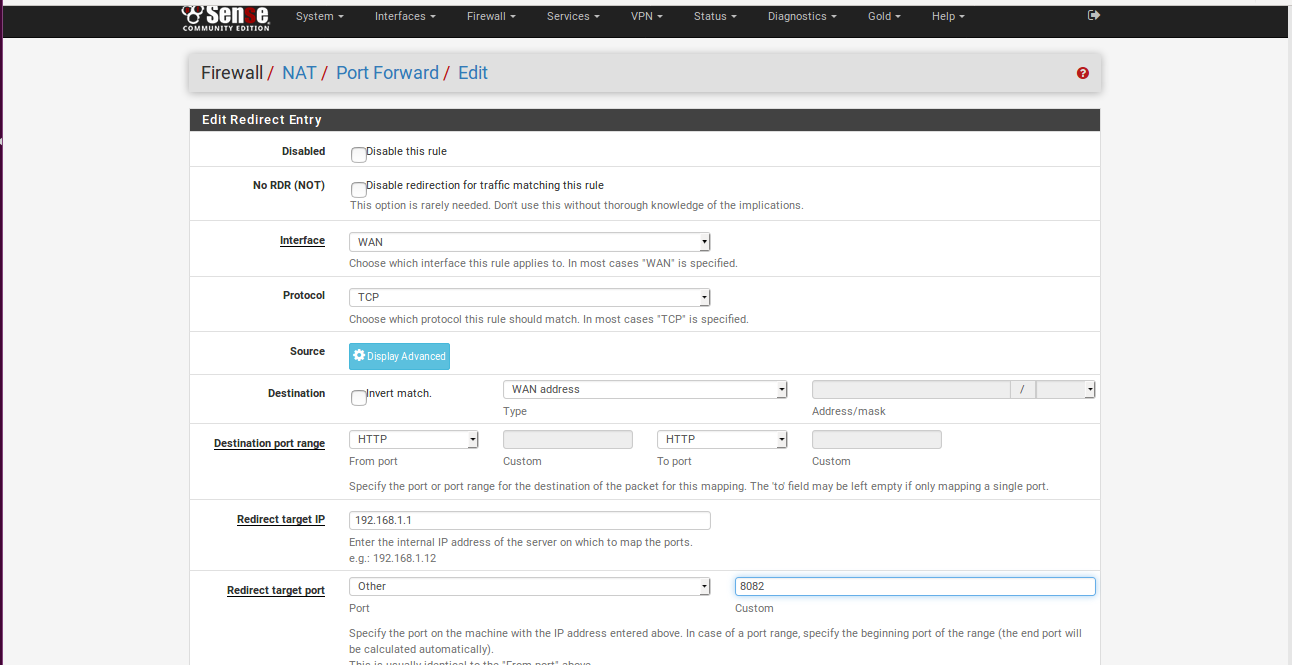
Now you can create a new rule that forwards port 80 HTTP to your pfSense LAN IP address like 192.168.1.1 by default.
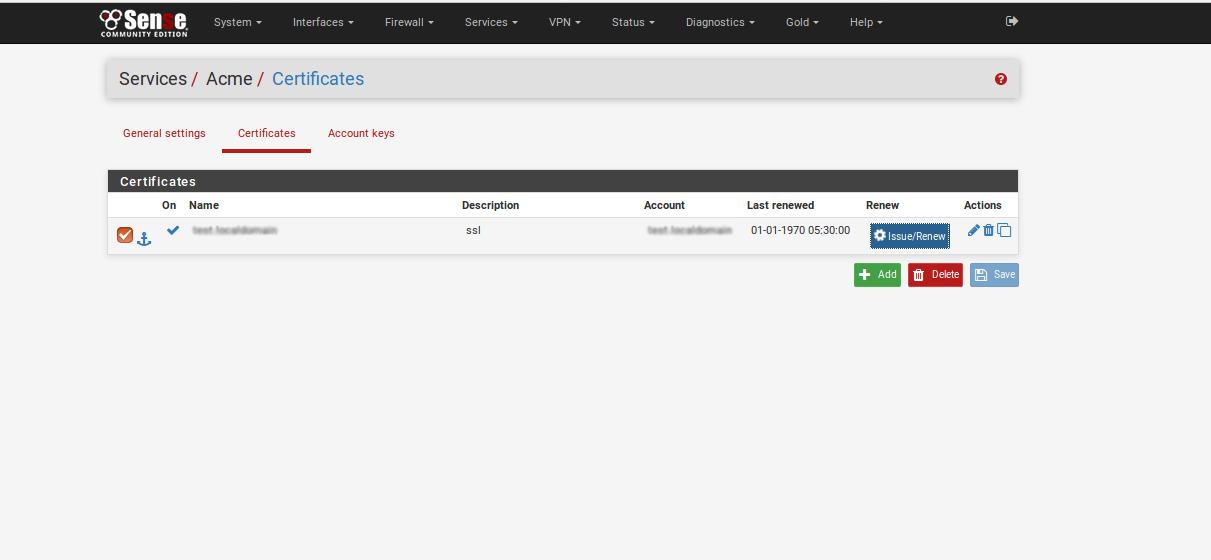
Now again go to Services option and click Acme Certificates and click the Issue/Renew button. Please configure domain name correctly.
The certificate is generated in System / Cert. Manager.
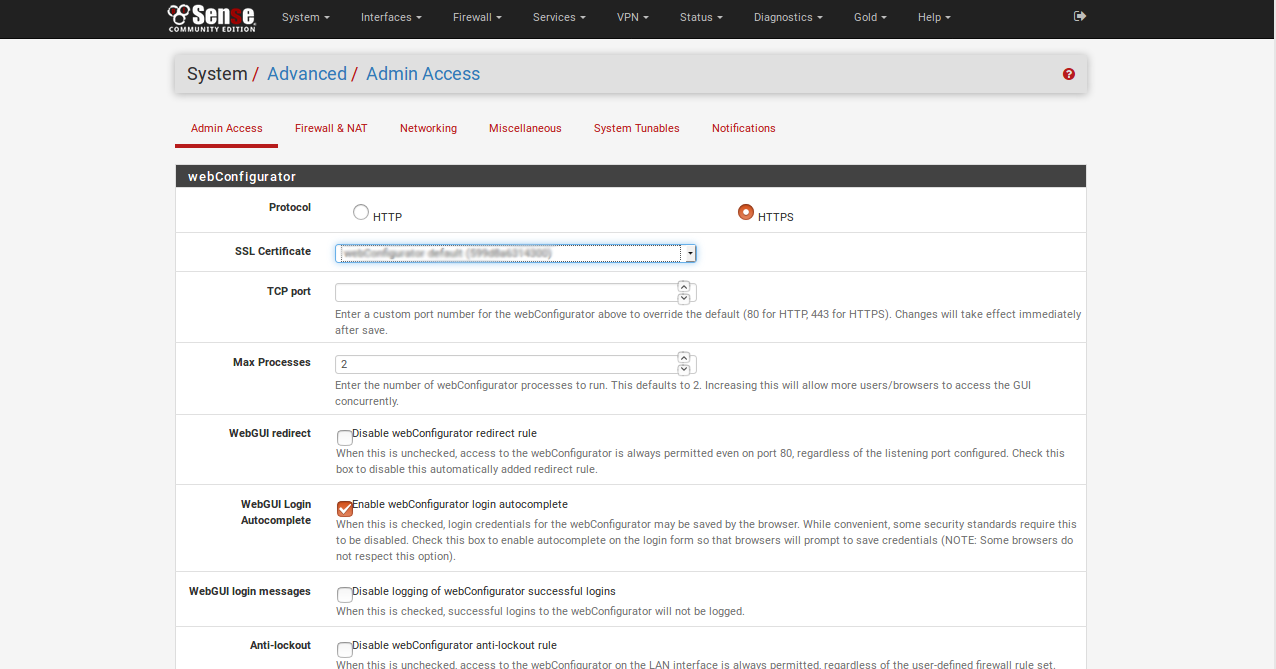
Now go to System / Advanced / Admin Access and select your new certificate in the SSL Certificate drop-down menu
and click on save.


Cookies are important to the proper functioning of a site. To improve your experience, we use cookies to remember log-in details and provide secure log-in, collect statistics to optimize site functionality, and deliver content tailored to your interests. Click Agree and Proceed to accept cookies and go directly to the site or click on View Cookie Settings to see detailed descriptions of the types of cookies and choose whether to accept certain cookies while on the site.















About Author
Shailendra Singh Rathod
Shailendra is Network Engineer and hard-working employee in oodles Technologies. He is CCNA Certified.