Introduction of AP and Installation of Unifi Controller on Linux
Posted By : Shiv Shankar | 22-Mar-2018
In networking, an access point (AP), is a networking device that allows the Wi-Fi device to connect to a wired network. AP generally adds a router (via
An AP connects directly to a wired local area network Wireless LAN technology usually provides wireless connections via Wi-Fi to other devices to use Ethernet, and AP wireless wired connections. AP supports many wireless devices connections through one of their wired connections.
Why use UniFi devices?
UniFi® Enterprise System provides a great combination of scalability with performance, reliability, and top performance/price pricing. An intuitive software featuring a graphical user interface is bundled with Unifi Software without any extra cost - there is no licensing fee or support cost.
High-Performance, Scalable Access Points
UniFi Access Points deliver wireless coverage, indoors or outdoors in the deployment of high-density customers requiring high latency and high uptime performance.
Installation of Unifi controller(used for controlling Unifi AP) on different systems(OS)
Supported systems
Microsoft Windows 7/8/10 (Installation process explained on official documentation)
Mac OS X 10.11+ (Installation process explained on official documentation)
Linux(Installation process in mentioned on the below blog)
System Requirements
• Linux, Mac OS X 10.11 (or above), or Microsoft Windows 7/8/10
• Java Runtime Environment 1.8 or above recommended
• Web Browsers
• A DHCP enabled network
Download the Latest Unifi driver from below link
https://www.ubnt.com/download/unifi
Install the downloaded .deb file as below
sudo dpkg -i Downloads/unifi_sysvinit_all.deb
Install the broken dependencies manually or below command
Start the Unifi controller service
Check the status of the
Open the browser and open the below link
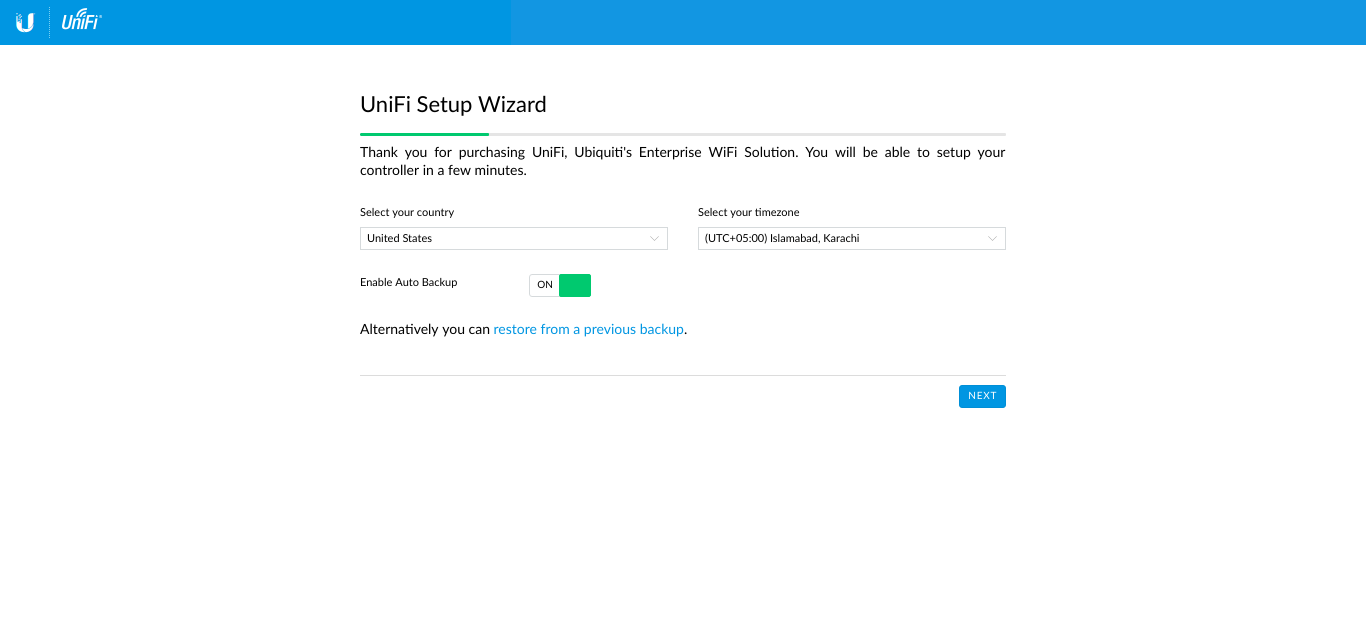
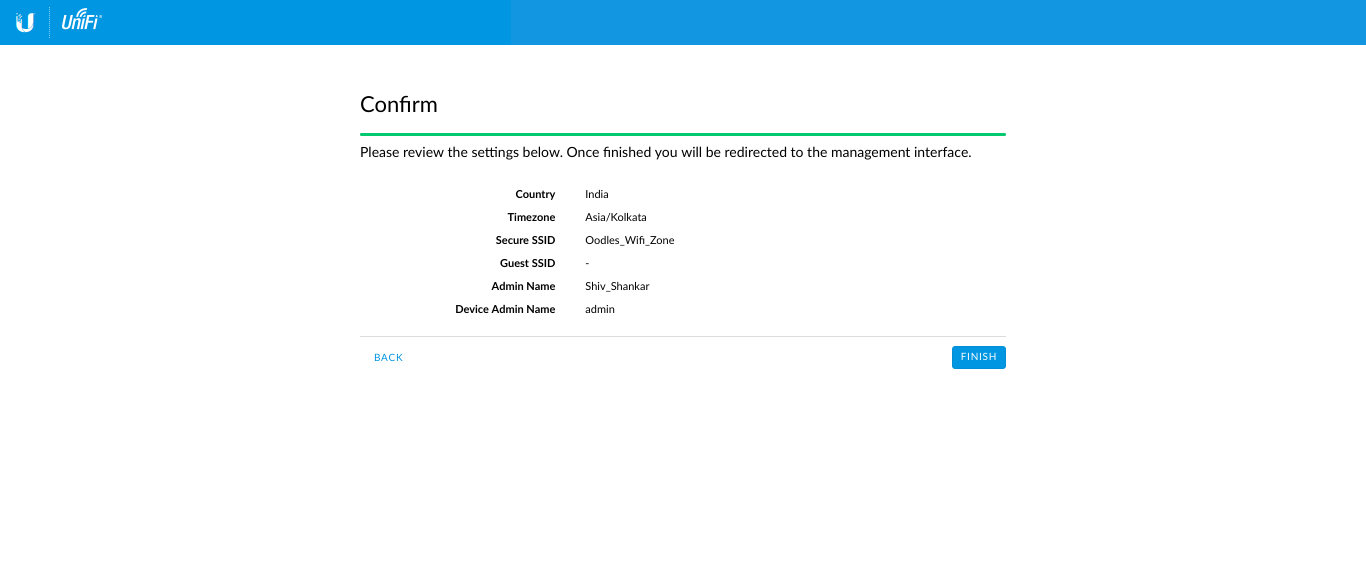
Enter the respective country and time-zone followed by the device list as per network setting
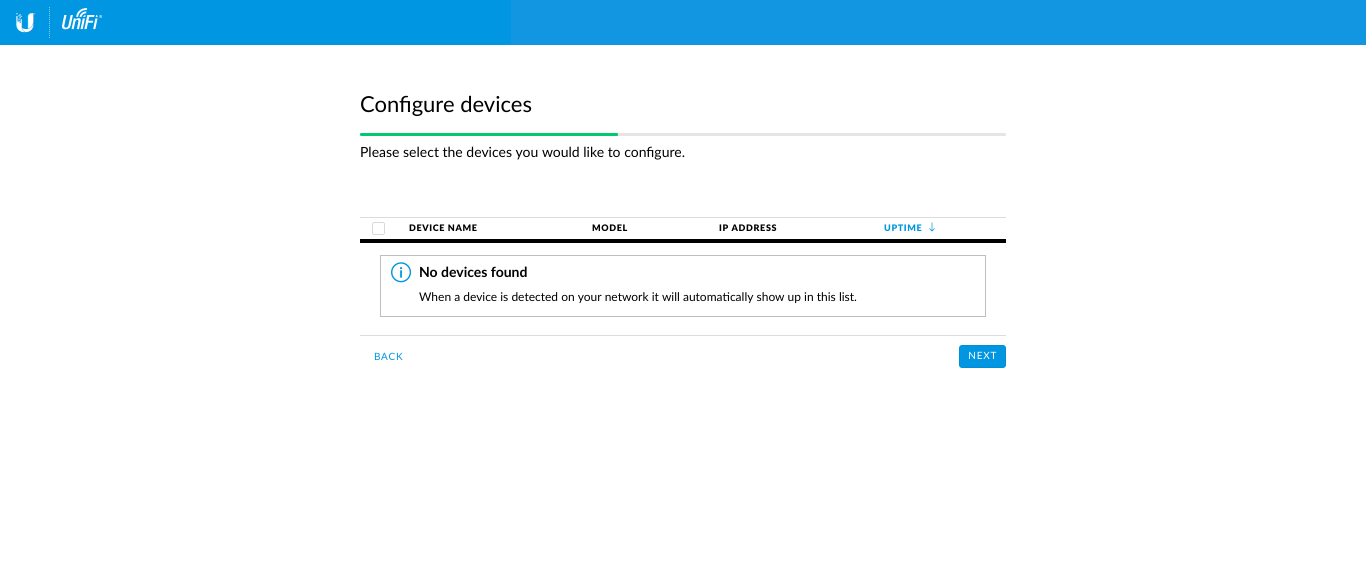
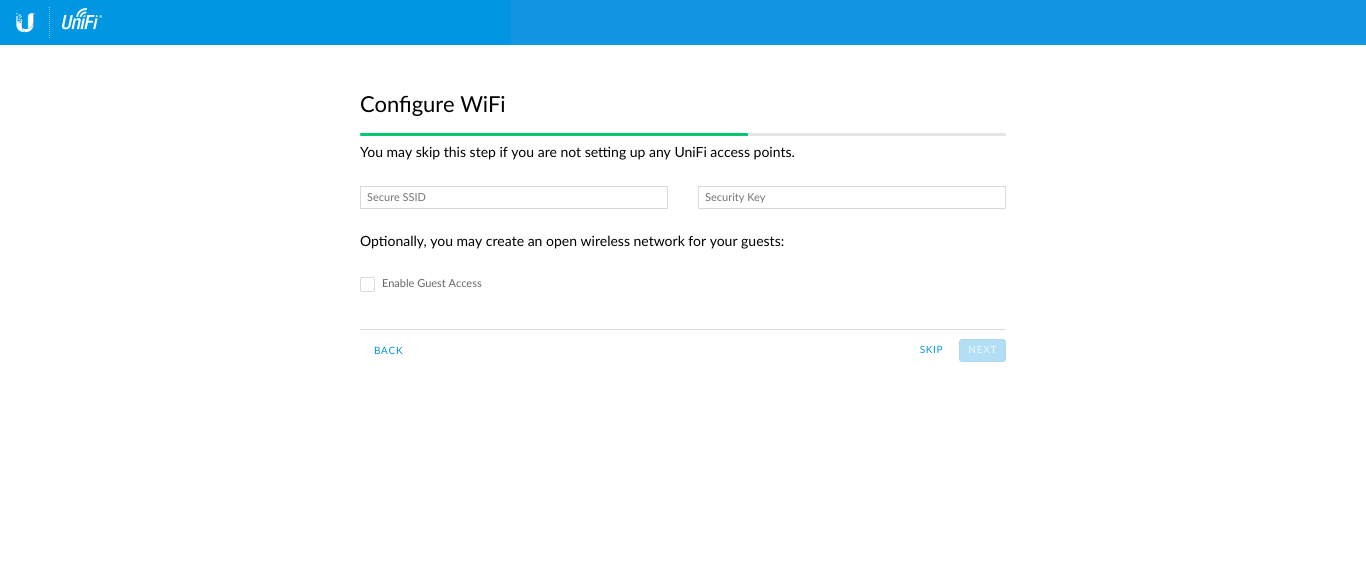
Fill the SSID name and SSID password as per requirement
Fill the “Controller Access” page details as per requirements
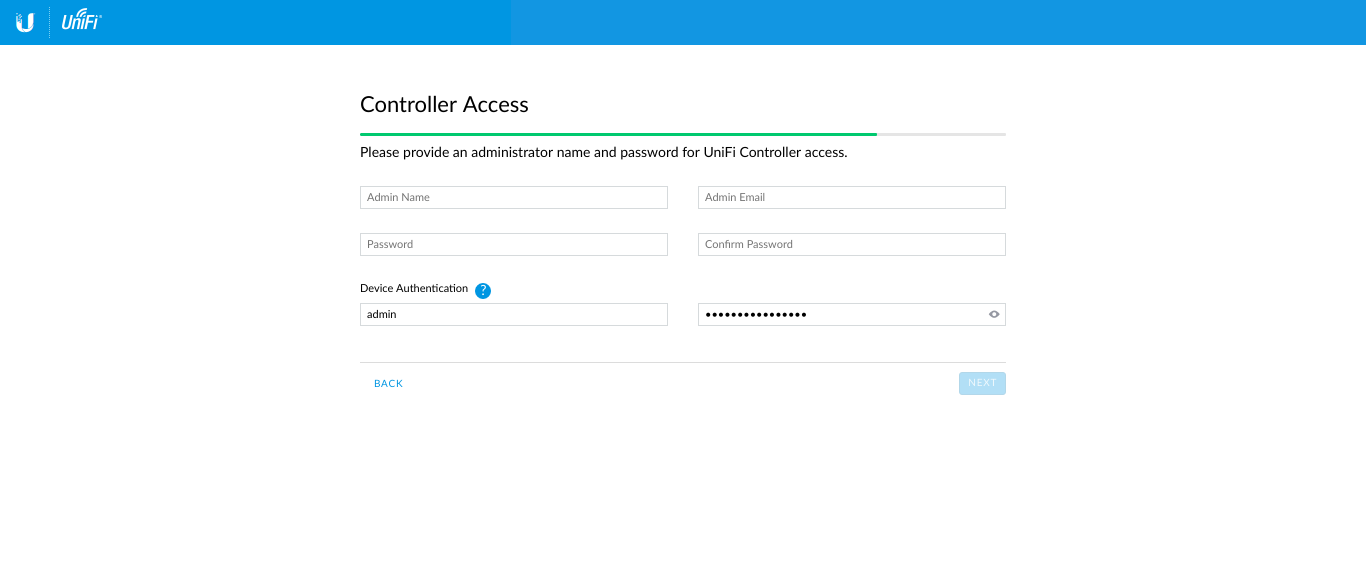
Hit the Finish button and to submit the details
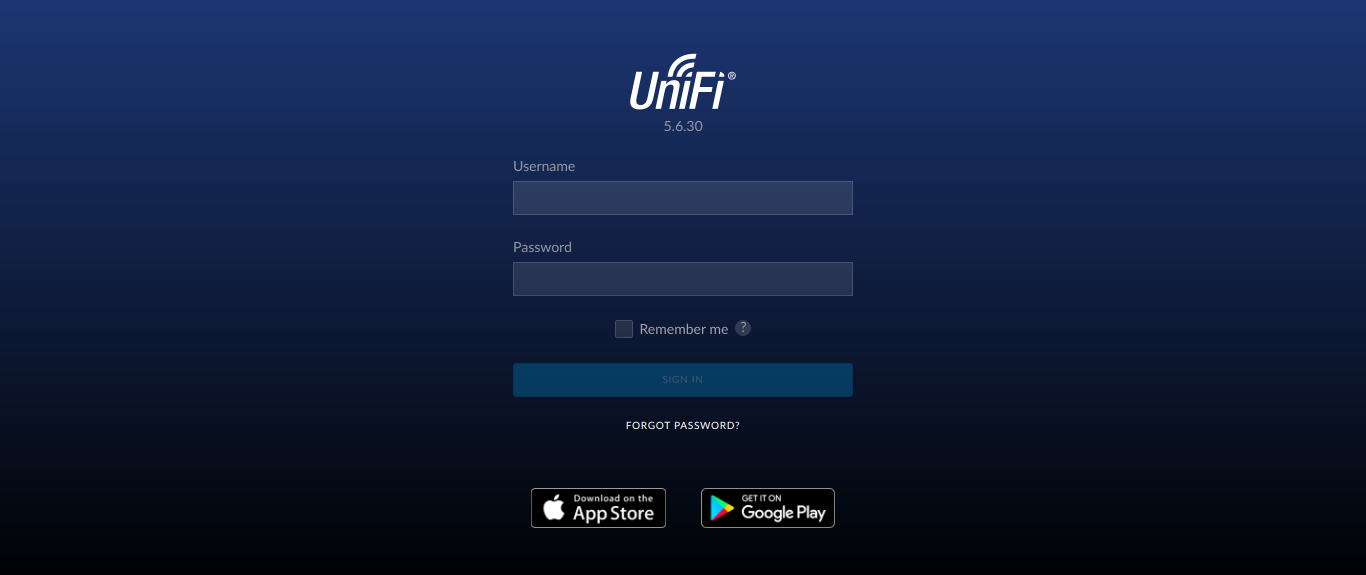
Go to the login page
https://localhost:8443/manage/account/login
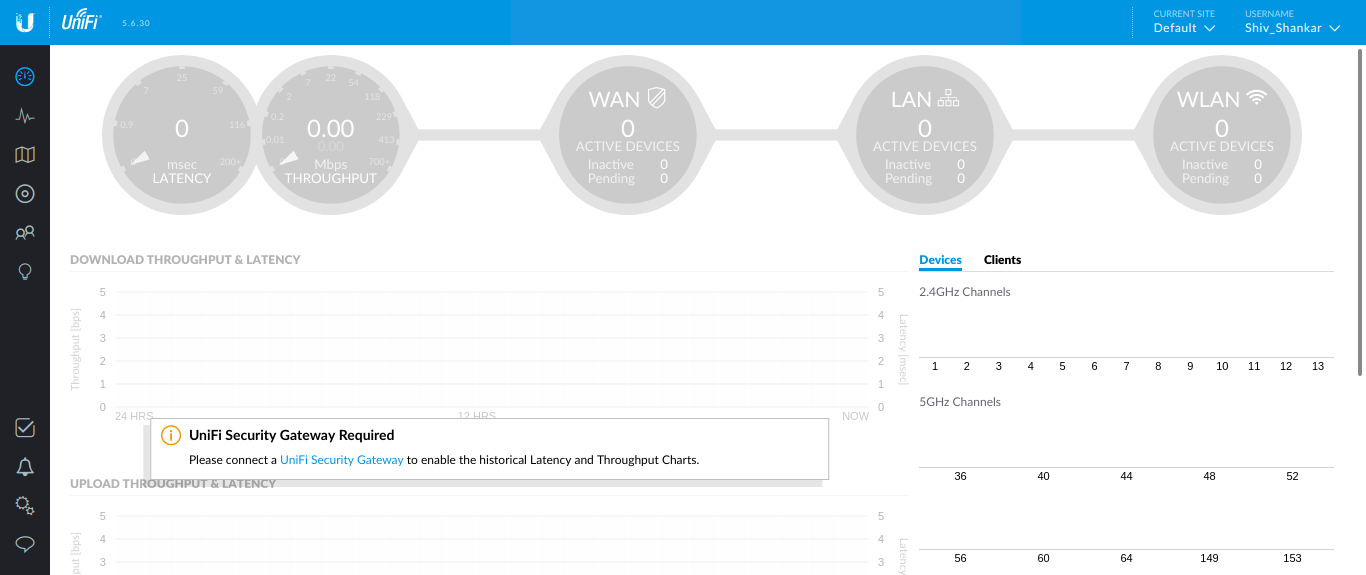
Navigate to the Device part and check the list of available devices
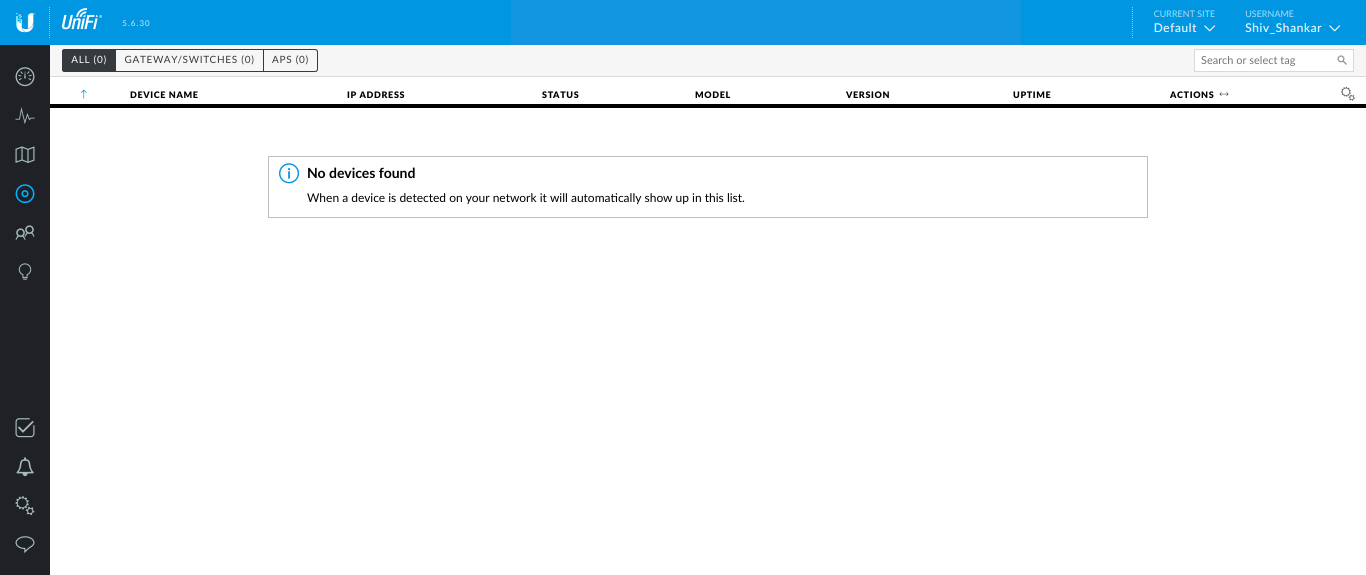
And check and upgrade(if available) the framework and adopt the device for providing the same setting as entering at the time installation.


Cookies are important to the proper functioning of a site. To improve your experience, we use cookies to remember log-in details and provide secure log-in, collect statistics to optimize site functionality, and deliver content tailored to your interests. Click Agree and Proceed to accept cookies and go directly to the site or click on View Cookie Settings to see detailed descriptions of the types of cookies and choose whether to accept certain cookies while on the site.















About Author
Shiv Shankar
Shiv is a highly skilled Infra professional, specializing in Linux, infrastructure management, Prometheus, AWS, Docker, shell scripting, Grafana, and Ansible. His expertise lies in effectively designing, deploying, and managing scalable solutions on the AWS platform, as evidenced by his certifications in CCNA and AWS. Shiv's proficiency in Docker, shell scripting, Prometheus, Grafana, and Ansible enables him to streamline infrastructure management and automate various processes for enhanced efficiency.