How To Mirror iOS Devices To The Fire TV Via AirPlay
Posted By : Anirudh Bhardwaj | 02-Aug-2016
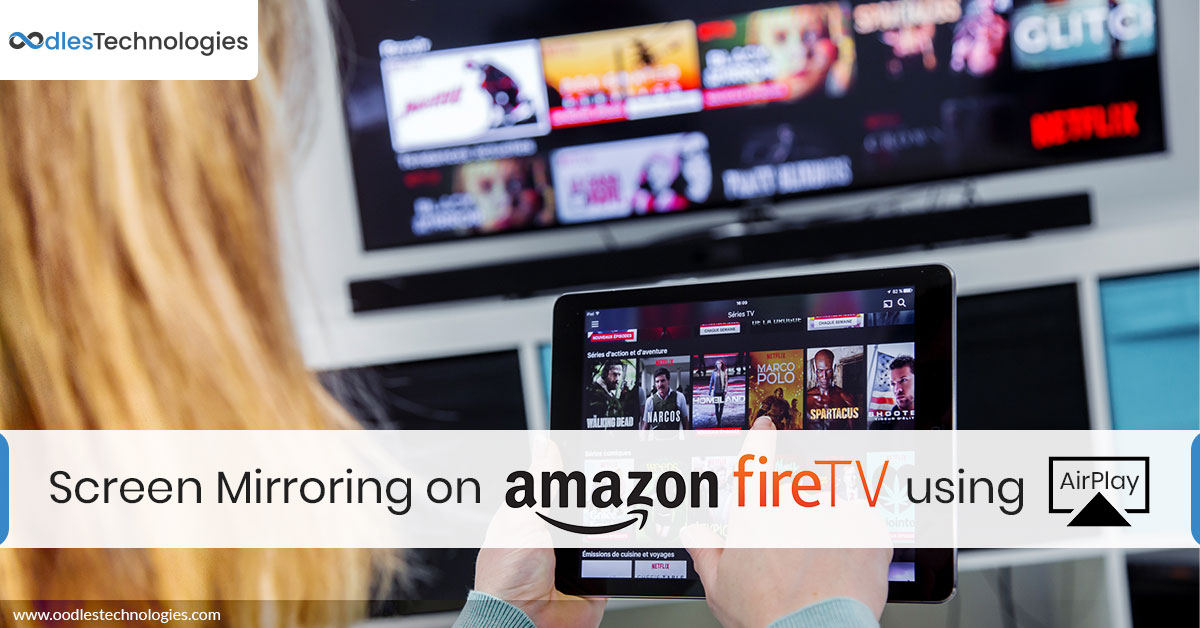
Streaming is fun but does it really fulfill all your needs? In this age of technological advancements, being innovative is not enough unless you’re giving people a bit of everything they could possibly imagine. As the competition is rising in OTT streaming services, there is a quest to introduce new and exciting features to remain unaffected in this intensified competition.
Screen Mirroring or screencasting is one such feature that is increasingly popular in all present-day streaming devices. Apple TV enables users to mirror content from their iPhone, iPad, or Mac device on a TV screen by virtue of its AirPlay feature. However, if you don’t have an Apple TV device, using the same AirPlay feature might be a bit tricky. Thanks to several third-party applications that enable Amazon Fire TV users to mirror content from their iDevices in simple steps. Read further to know how you can easily mirror your iPhone’s content on the Fire TV screen.
Requirements
Since Amazon Fire TV doesn’t offer built-in support for iOS devices, you can not directly use the AirPlay feature on your Fire TV. The first thing you need is a third-party application that enables you to mirror the contents of your iPhone or iPad. There are several apps on the Amazon App Store that enable you to use the AirPlay feature. Two popular apps are Reflector and AirReceiver.
Reflector is a great app that works well on all Amazon Fire TV devices but it might be a little too pricey. It is available for $6.99 at the Amazon App Store. Another app is AirReceiver which lets you do the same thing at a relatively lower price i.e $2.99. In this blog post, we will see how to install and set up AirReceiver. The process is pretty much the same for the other app as well.
Getting Started
First of all, you need to purchase and install the AirReceiver app from the Amazon App Store. Then proceed with the following steps:
- Go to the Search tab and search for AirReceiver. It will take you to the results with AirReceiver on top of the list.
- Select AirReceiver, make payment and install the app.
- Once it’s been installed on your Fire TV, launch the app from the Apps Library.
After that, you need to enable the app from your Amazon Fire TV. Enabling the app is pretty simple.
- Checkbox the AirPlay option that reflects on the very first screen of the app. You can change your Fire TV name if you want to. Otherwise, you are good to go.
- After enabling the AirPlay option in AirReceiver app settings, your Fire TV name will be visible in the list of nearby devices whenever you turn on the AirPlay on your iPhone or iPad.
- Select your Fire TV device and turn on the mirroring.
That’s all you have to do. Now everything you do on your iPhone or iPad will reflect on the Fire TV enabled television screen.


Cookies are important to the proper functioning of a site. To improve your experience, we use cookies to remember log-in details and provide secure log-in, collect statistics to optimize site functionality, and deliver content tailored to your interests. Click Agree and Proceed to accept cookies and go directly to the site or click on View Cookie Settings to see detailed descriptions of the types of cookies and choose whether to accept certain cookies while on the site.















About Author
Anirudh Bhardwaj
Anirudh is a Content Strategist and Marketing Specialist who possess strong analytical skills and problem solving capabilities to tackle complex project tasks. Having considerable experience in the technology industry, he produces and proofreads insightful content on next-gen technologies like AI, blockchain, ERP, big data, IoT, and immersive AR/VR technologies. In addition to formulating content strategies for successful project execution, he has got ample experience in handling WordPress/PHP-based projects (delivering from scratch with UI/UX design, content, SEO, and quality assurance). Anirudh is proficient at using popular website tools like GTmetrix, Pagespeed Insights, ahrefs, GA3/GA4, Google Search Console, ChatGPT, Jira, Trello, Postman (API testing), and many more. Talking about the professional experience, he has worked on a range of projects including Wethio Blockchain, BlocEdu, NowCast, IT Savanna, Canine Concepts UK, and more.