First App for Chromecast Development
Posted By : Raman Joshi | 21-Dec-2014
In this blog we will see that how we can create our first app for chromecast. Start a new project folder, called “MyFirstApp” within the tomcat/webapps directory of your server.
Within this folder, create a file called “index.html” and then open it for editing within your editor of choice.
A First Page
The code sample below shows a very basic first page that includes the Chrome Sender API, a custom JavaScript file called “script.js,” and a button. In order to communicate with the Chromecast extension within Chrome, we will need to include the Chrome Sender API library.
In the following steps, we will use JQuery to handle a button click, so take note that JQuery is also included within the page.
index.html
Save the index.html file and create another file in the root directory called “script.js.”
This is where we will be placing all of the custom code to interact with the Chromecast, as well as code to handle the button click (which will eventually cast an image to the Chromecast).
We write the code to initialize a session with the Chromecast. To do this, the Chromecast requires an applicationID. This ID is provided via the cast API as the DEFAULT_MEDIA_RECEIVER_APP_ID (the ID of the Chromecast). For now, don’t worry about this ID; it is simply a unique ID associated with the Chromecast.
Once the applicationID is assigned, it is passed into the sessionRequest method which creates a session with the Chromecast. Next, an apiConfig object is created by passing the sessionRequest, a sessionListener function, and a receiverListener function into the ApiConfig function of the Cast API:
The next step is to create the two callback functions, sessionListener and receiverListener, which we passed to the ApiConfig method earlier. Then, add a sessionListener, receiverListener receiverListener
Well now we are going to define what should happen when the initialization either succeeds or fails.
The next step involves user interaction in order to complete successfully. Because of security concerns, your application cannot simply commandeer a user’s Chromecast and begin casting on its own. Instead, Google requires that you prompt the user (by launching the Chromecast extension dialog) to select a device to which the media should be sent.
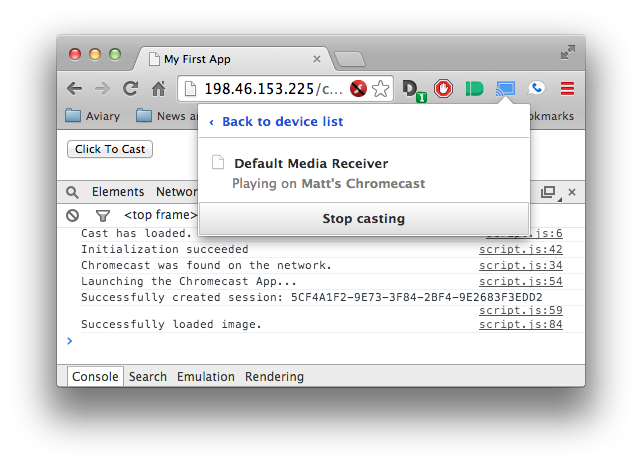
In order to launch this dialog, we need a function called “launchApp” to be called when when we want to launch the casting. We can do that by attaching a click event handler to the button we created earlier
Notice the addition of the “launchApp()” call when the button is clicked. Also create the “launchApp” function.The second line of the function calls the requestSession method of the cast object. This method takes two arguments: onRequestSessionSuccess, which is called when a session has been successfully created (i.e. the user selected a Chromecast from the dialog), and onLaunchError, which is called when the session fails for some reason (most commonly when the user does not select a Chromecast from the popup).
script.js
 $( document ).ready(function(){
        var loadCastInterval = setInterval(function(){
                if (chrome.cast.isAvailable) {
                        console.log('Cast has loaded.');
                        clearInterval(loadCastInterval);
                        initializeCastApi();
                } else {
                        console.log('Unavailable');
                }
        }, 1000);
});
function initializeCastApi() {
        var applicationID = chrome.cast.media.DEFAULT_MEDIA_RECEIVER_APP_ID;
        var sessionRequest = new chrome.cast.SessionRequest(applicationID);
        var apiConfig = new chrome.cast.ApiConfig(sessionRequest,
                sessionListener,
                receiverListener);
        chrome.cast.initialize(apiConfig, onInitSuccess, onInitError);
};

function sessionListener(e) {
        session = e;
        console.log('New session');
        if (session.media.length != 0) {
                console.log('Found ' + session.media.length + ' sessions.');
        }
}

function receiverListener(e) {
        if( e === 'available' ) {
                console.log("Chromecast was found on the network.");
        }
        else {
                console.log("There are no Chromecasts available.");
        }
}

function onInitSuccess() {
        console.log("Initialization succeeded");
}

function onInitError() {
        console.log("Initialization failed");
}
$('#castme').click(function(){
        launchApp();
});
function launchApp() {
        console.log("Launching the Chromecast App...");
        chrome.cast.requestSession(onRequestSessionSuccess, onLaunchError);
}
function onRequestSessionSuccess(e) {
        console.log("Successfully created session: " + e.sessionId);
        session = e;
        loadMedia();
}

function loadMedia() {
        if (!session) {
                console.log("No session.");
                return;
        }

        var mediaInfo = new
chrome.cast.media.MediaInfo('http://i.imgur.com/IFD14.jpg');
        mediaInfo.contentType = 'image/jpg';

        var request = new chrome.cast.media.LoadRequest(mediaInfo);
        request.autoplay = true;

        session.loadMedia(request, onLoadSuccess, onLoadError);
}

function onLoadSuccess() {
        console.log('Successfully loaded image.');
}

function onLoadError() {
        console.log('Failed to load image.');
}

$('#stop').click(function(){
        stopApp();
});

function stopApp() {
        session.stop(onStopAppSuccess, onStopAppError);
}

function onStopAppSuccess() {
        console.log('Successfully stopped app.');
}

function onStopAppError() {
        console.log('Error stopping app.');
}
Casting Media
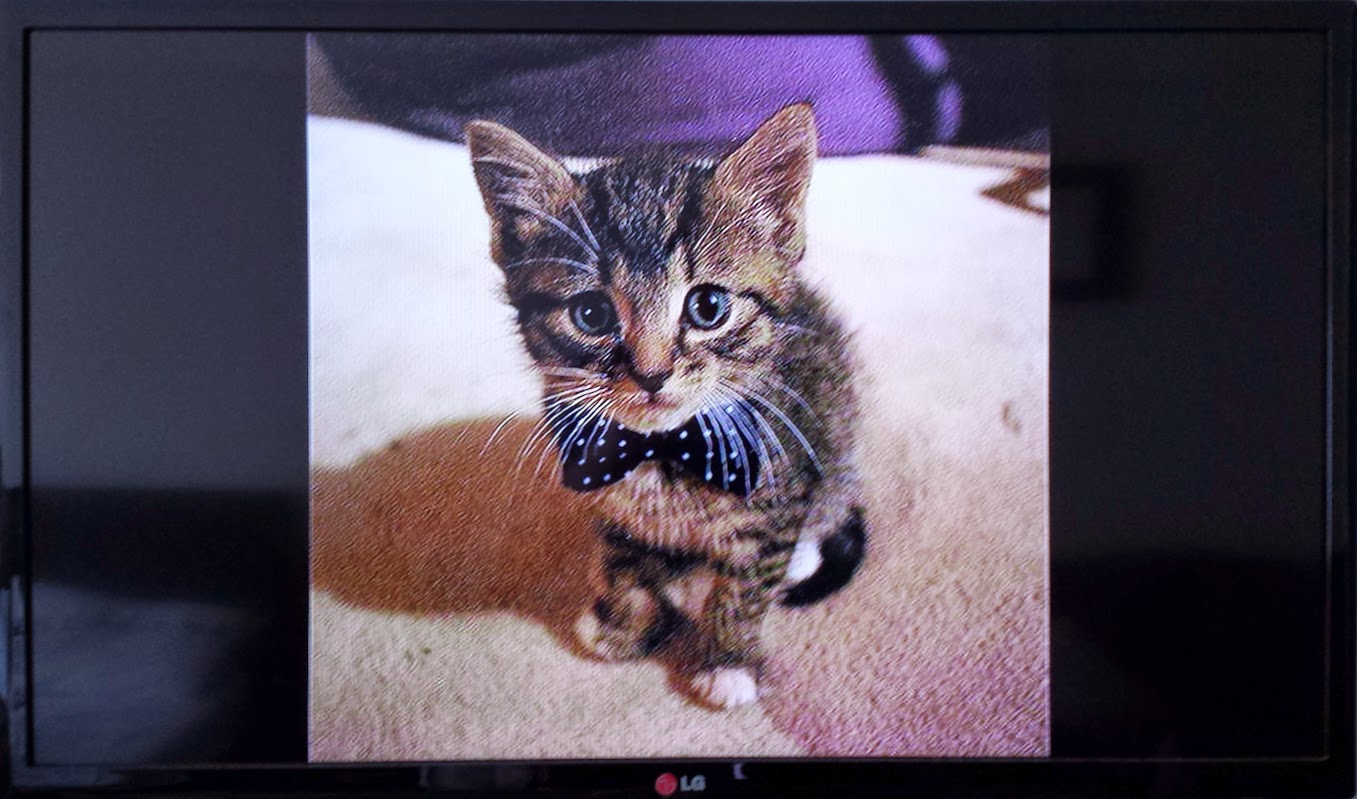
There are a number of moving parts when it comes to casting media to the device once a session has been established, so I am just going to start out with the shortest amount of code that can cast an image, then walk through the pieces. The first function, “loadMedia,” is the function called when a session is successfully initialized. The first thing it does is make sure that a valid session is set. If not, there is nothing to cast, so it returns without doing anything. However, if a session does exist, a new “mediaInfo” object is created by calling chrome.cast.media.MediaInfo and passing in a URL of an image (movies, GIFs, and other media can be passed in, but for now let’s stick with images). This image URL is one of a cute kitten hosted on Imgur.
Thanks


Cookies are important to the proper functioning of a site. To improve your experience, we use cookies to remember log-in details and provide secure log-in, collect statistics to optimize site functionality, and deliver content tailored to your interests. Click Agree and Proceed to accept cookies and go directly to the site or click on View Cookie Settings to see detailed descriptions of the types of cookies and choose whether to accept certain cookies while on the site.















About Author
Raman Joshi
Raman is a bright web app developer with experience in Java , Groovy and Grails frameworks