How To Mirror your iPhone or iPad to Amazon Fire TV
Posted By : Oodles Technologies | 26-Dec-2016
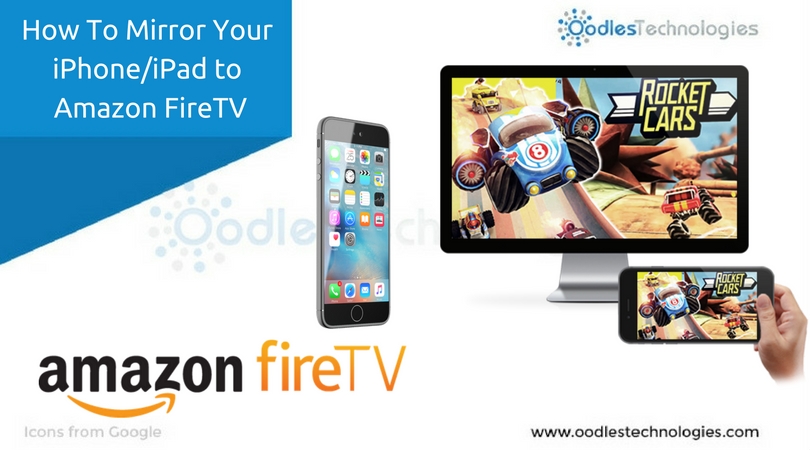
Mirroring their iPhone/iPad to Smart TVs in order to access games, music, HD videos etc. is the latest buzz among the tech geeks community. Mirroring is actually a very simple process to follow and it also a deeply enriching experience to relish once you have successfully accomplished the task. Lately, people from all round the world have shown their keen interest in streaming ios apps and playing games on their smart TVs via mirroring their smartphones. Considering the popularity of Amazon Fire Tv Streaming Services, it becomes important for one to know the correct procedure for mirroring.
People no longer want to miss the best digital entertainment available on the planet which is easily available via mirroring. The advantages including playing games, streaming music on web and mobile apps, streaming live videos and VOD, watching movies on Netflix, Youtube and checking out your personal and family HD pics which are there on your mobile over the big screen of your Smart TV. Amazon Fire Tv Live Streaming Services can also be accessed on your smart TV via mirroring using your iPhone or Ipad.
Easy to Follow Detailed Steps to Mirror iPhone/IPad to your Amazon FireTV
-
Firstly, sign in to amazon.com with your account credentials i.e. your Amazon username and password.
-
After signing in on your iPhone, scroll down to the bottom of the web page on Amazon’s mobile site and you will find this option which says "Amazon.com full site". Click on this option to continue.
-
Now on the opened page, you can find “search” option on the top. Type in "airplay UPnP" in the search box and press Enter.
-
Click on the first search result obtained, that would be "Airplay and UPnP". Now, it will ask you to buy it for $2.99. You need to buy this by paying through your bank card and after you have bought it, an option on the same page saying “Deliver” will appear within a green box on the top right side of the screen.
-
Click on the “Deliver” option. Now, you need to sync your iPhone to your Amazon Fire TV. For this, go to Settings on your FireTV and scroll down to “My Account” section. Under “My Account” , there will be an option which says - “Sync Amazon Account”. Click on that.
-
After the synchronization process ends, you again need to go back to “Apps” section on your FireTV. Under Apps Library, you now will find “Airplay and UPnP" . Click on this option to download it.
-
Once downloaded, it will automatically open a screen on your FireTV and you need to choose “Enable Airplay” option from among the list of given options on the opened up screen.
-
After you have clicked on “Enable Airplay” , either your device name will appear automatically or it will ask you to name your device. Enter a name for your device or if you are using more than one device, you can name each of them separately by clicking on the option "Airplay device name" on the same screen.
-
Now, go back to your iPhone and perform a swipe up on your mobile screen. You will now see that on swiping up, an Airplay option will appear. Click on this option to access mirroring on your FireTV.
-
After clicking upon the “Airplay” option which you got via swiping up on your phone screen, your device name must be reflecting on your phone’s screen. This is the same device name which you have entered earlier during this process.
-
You need to click on your device name and that will give you an option which says “Mirroring”. Once you click on this option, you are all set to go.
Your iphone’s screen would now be visible on your Amazon FireTV. Now you can access all your iPhone apps, pics, videos, games etc. directly on your Smart TV.
Also Read : How To Mirror Android Phones To The TV Using Roku
All of the regular Amazon Fire Tv Streaming Services are available for you via mirroring.
Hope this helps. Enjoy the experience.


Cookies are important to the proper functioning of a site. To improve your experience, we use cookies to remember log-in details and provide secure log-in, collect statistics to optimize site functionality, and deliver content tailored to your interests. Click Agree and Proceed to accept cookies and go directly to the site or click on View Cookie Settings to see detailed descriptions of the types of cookies and choose whether to accept certain cookies while on the site.















About Author
Oodles Technologies
Vijay is a Blogger and a Web Content Writer. He is passionate about writing be it blogging, articles writing, technical writing etc. He loves reading , watching movies and playing outdoor games.