Configuring SSL in Apache Tomcat
Posted By : Abhimanyu Singh | 24-Dec-2012
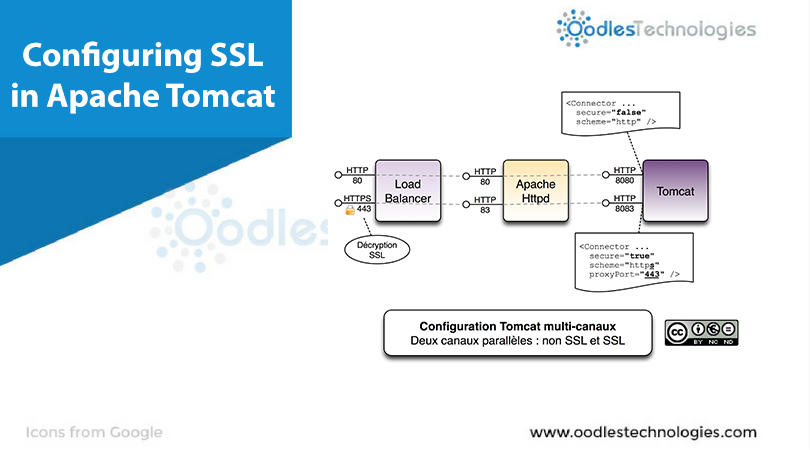
In one of my project , I have done Tomcat SSL Configuration . In this blog I will share steps I followed to do the Tomcat SSL configuration.
- Create a directory in home directory
mkdir sslcertificate
cd sslcertificate
- Now second step is to generate keystore file
execute following command to generate .csr file
$JAVA_HOME/bin/keytool -genkey -alias {alias-name} -keyalg RSA -keystore sslcertificatekey -keysize 2048
On executing above command on terminal . I will ask for several information. Oragnization Name , country code , province ,domain name and password. when it prompt for first name - enter your domain name
where sslcerificatekey is the name of keystore file . It will generate in {home directory}/sslcertificate. Make a backup copy of sslcertificatekey and keep the password and
- Now we need to generate .csr file . Run the below command in the console
$JAVA_HOME/bin/keytool -certreq -keyalg RSA -alias {alias-name} -file certreqssl.csr -keystore sslcertificatekey
where certreqssl.csr is .csr file will be generated in the directory where keystore file is generated.
- Use this csr file to get your certificate from a certificate authority.Make sure you download PKCS# 7 format i.e. .p7b file.
- Import your certificate using following command
$JAVA_HOME/bin/keytool -import -alias tomcat -keystore sslcertificatekey -trustcacerts -file www_mydomain_com.p7b -storepass {password}
if response is “Certificate reply was installed in keystore” then you have successfully import the certificate
- If there is any issue "“Failed to establish chain from reply” . follow the following steps
- Go to https://www.sslcertificaten.nl/download/Root_Certificaten/ and download the intermediate certificate provided by your certificate authority
- Execute the following command in console to import the primary and secondary certificate
- Use aliases primary and secondary while installing certificates as described below.
$JAVA_HOME/bin/keytool -import -alias primary -keystore sslcertificatekey -trustcacerts -file {primary-file name} -storepass {password}

$JAVA_HOME/bin/keytool -import -alias secondary -keystore sslcertificatekey -trustcacerts -file {secondary-file name} -storepass {password}
- Now made the following change in the {tomcat-home}/conf/server.xml
- Find the following connector configuration
<connector clientauth="false" maxthreads="150" port="8443" protocol="HTTP/1.1" scheme="https" secure="true" sslenabled="true" sslprotocol="TLS"> </connector>
add the following line
keystoreFile="{keystore path}" keystorePass="{keystore password}"
Your new connector will look like
<connector clientauth="false" keystorefile="{keystore path}" keystorepass="{keystore password}" maxthreads="150" port="8443" protocol="HTTP/1.1" scheme="https" secure="true" sslenabled="true" sslprotocol="TLS"> </connector>
that's it you are done with ssl configuration in tomcat
- now access https://
:8443/ and accept the certificate


Cookies are important to the proper functioning of a site. To improve your experience, we use cookies to remember log-in details and provide secure log-in, collect statistics to optimize site functionality, and deliver content tailored to your interests. Click Agree and Proceed to accept cookies and go directly to the site or click on View Cookie Settings to see detailed descriptions of the types of cookies and choose whether to accept certain cookies while on the site.















About Author
Abhimanyu Singh
Abhimanyu is an seasoned technologist . He always keeps himself ahead in embracing and adapting new technologies/frameworks to solve business problems. He specialise in Blockchain technology , Video Content Management & enterprise software .